What is an MCP server in plain English?
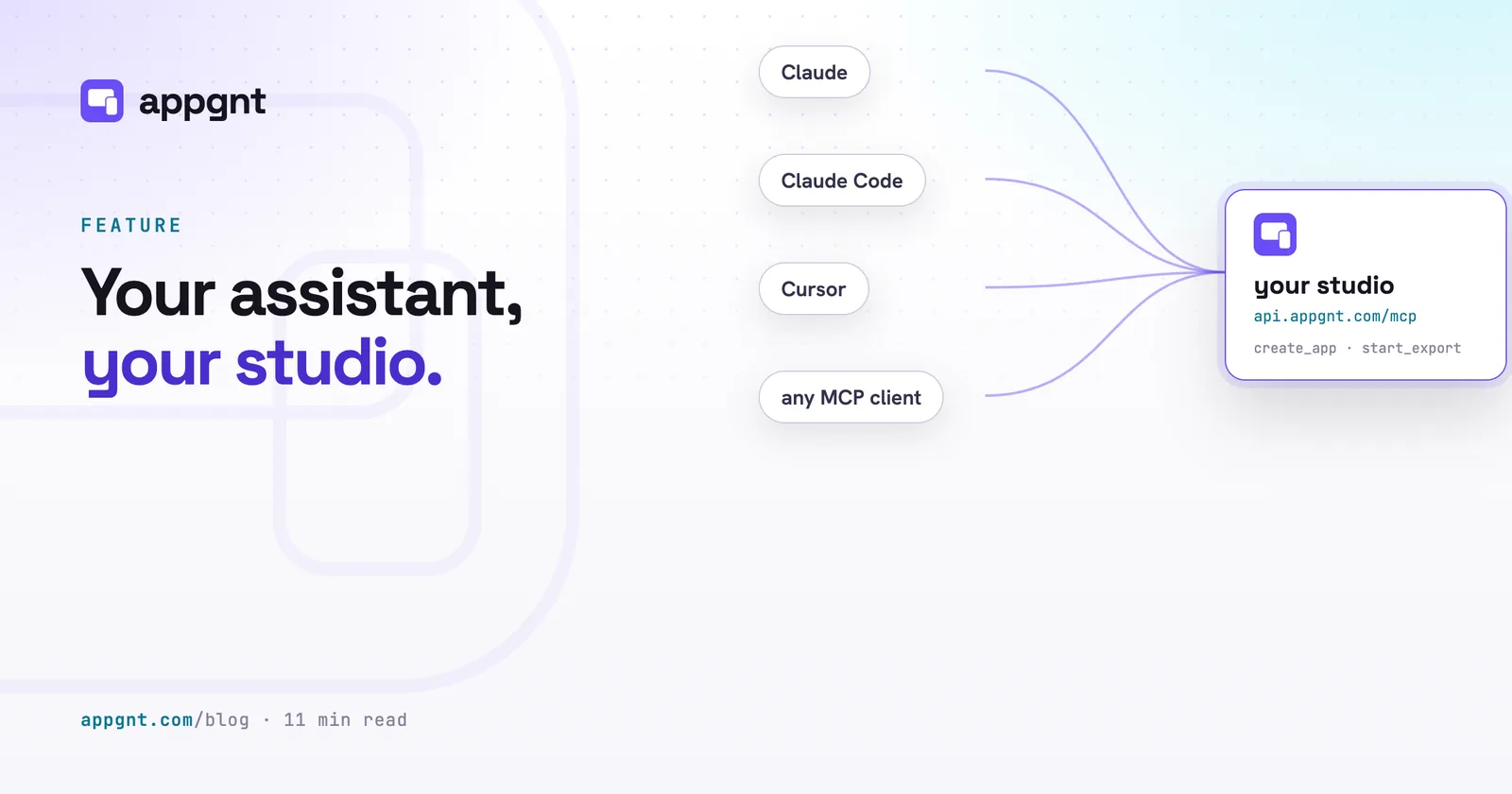
An MCP server is a web address that gives your AI assistant a secure menu of tools it can use on your behalf.
MCP stands for Model Context Protocol. Think of it like a dedicated cable connecting the chat assistant you use every day to a software studio where real software gets created. Without this connection, an assistant can write code into a chat box, but the burden remains on you. You have to copy the files, set up a local build environment, deal with terminal errors, and figure out hosting.
With an MCP server connected, your assistant can operate the tools inside appgnt directly. It can create a new project, edit source files, check for compilation bugs, and return a working web link. You approve the connection once, and the assistant uses the studio tools only when you ask it to solve a problem.
How to connect your assistant to appgnt
You connect an assistant by entering the appgnt server address into your client settings.
That address is https://api.appgnt.com/mcp. Because appgnt relies on standard OAuth authorization, you never have to generate, copy, or paste secret API tokens into configuration files.
If you use an AI chat app on the web or desktop, open its Settings, find the connectors section, add a custom connector, and paste the server address. The app will direct you to a sign-in window where you approve access to your appgnt account.
If you work with a coding agent in a terminal, a single command registers the server, and editors like Cursor take the same address in their MCP settings. The setup page lists the exact steps and commands for each client. Every standard client follows the same browser verification routine, linking your chat window to your appgnt workspace in a few clicks.
What the permission screen actually allows
The appgnt permission screen explicitly lists the assistant, your account name, and three bounded scopes before granting access.
Nothing connects quietly or assumes full control of your account. When the authorization window opens, you review three distinct permission categories:
- Apps. This scope allows the assistant to create applications, send update prompts, read source code, edit files, and trigger rebuilds.
- Exports. This scope lets the assistant trigger Android, Windows, and Linux exports, compile the Marketing kit, and push updates to your public app page.
- Account. This scope allows the assistant to check your account identity and see which underlying AI models are available.
When you click Allow, appgnt issues a secure token that lasts for one hour. The assistant refreshes this token automatically in the background while you keep working. If you disconnect the connector or log out, that token dies immediately.
Why your daily assistant writes a better app
The assistant you speak with every day produces a better app because it already holds your business context.
When business owners sit down to describe the app your business needs, they often struggle to list every operational rule cold. They leave out key details, such as how weekend overtime is calculated, how parts are tracked in a warehouse with poor reception, or how customer cancellation windows work.
If you already use an AI assistant to draft quotes, organise shift rotas, or review supplier contracts, that assistant already knows how your company functions. You do not have to write a formal technical specification from scratch. You can simply say: "Take the vehicle inspection checklist we discussed this morning and turn it into a mobile app for our drivers."
Because the assistant draws on your existing operational history, it sends a far more accurate brief to the studio. You can read more about how to structure these instructions in our guide on how to brief an app.
Tasks your assistant can handle once connected
A connected assistant can build, refine, export, and publish an app without requiring you to switch browser tabs.
The tools available over the MCP server match the manual actions you would otherwise perform inside the studio. The assistant can run create_app to initiate a build, followed by prompt_app as you test and adjust features. If a calculation needs adjusting or an interface element sits in the wrong position, the assistant can inspect the code with read_app_file and submit a clean patch with write_app_file.
The assistant can also manage administrative and launch tasks:
- Porting to native phone apps. The assistant can run
build_native_mobileto have the agent port the app to native Kotlin (Android) and SwiftUI (iOS) apps, or carry over what changed since the last port. - Generating native downloads. The assistant can trigger an Android APK, a Windows installer, or a Linux package using
start_export. - Assembling store materials. It can run
generate_marketing_kitto produce store listings, metadata, and properly dimensioned screenshots. - Launching the app page. It can call
publish_app_pageto make your public link live athttps://appgnt.com/p/<slug>.
This setup works particularly well for operations leads and consultants. A consultant managing systems for multiple clients can review an app, order a change, and generate a new export file entirely from a single ongoing conversation.
| Task | Doing it in the studio | Doing it via your assistant |
|---|---|---|
| Starting a project | Type prompt into studio chat | Tell your assistant to use past conversation context |
| Adjusting logic | Write feedback in chat pane | Ask your assistant to inspect and edit files directly |
| Native exports | Open Publish pane and click export | Ask your assistant to kick off an export run |
| Marketing assets | Run Marketing kit manually | Tell your assistant to prepare store copy and art |
| Account controls | Managed via setup screen | Blocked entirely over MCP for safety |
What the assistant is strictly blocked from doing
The MCP server deliberately prevents assistants from reading your private credentials, changing billing details, or viewing other accounts.
Your AI provider API keys and personal sign-in tokens live only within the studio setup screen. They are stored as encrypted secrets on our backend and are never sent over the MCP wire. An assistant cannot inspect those keys, alter your billing arrangement, or purchase extras.
Isolation is enforced by identity. An assistant can only see and modify projects belonging to the specific account that approved the link. It cannot create new user accounts or see apps belonging to another business.
Throughout every change your assistant makes, you own the code. The studio generates an ordinary, standard project that any web developer can maintain. You can download the complete project zip from the Files pane whenever you choose and run it on your own hardware.
What to expect while the app builds
Real software builds take time, so an assistant using appgnt will pause and poll rather than answering right away.
When you ask your assistant to create or modify an app, appgnt's pipelines get to work on the project. The studio updates the source files, completes a build, and tests every change at phone, tablet and desktop sizes before you see it. Errors and broken layouts are fixed first.
Because a full build cycle takes two to three minutes, your assistant will call get_app_activity on a loop to monitor progress. It will check the status, wait briefly, and check again. This pause is normal. Let the assistant finish polling, and it will return your deployed preview link once the test suite passes.
Access to the appgnt MCP server is currently invite-only while we allocate machine capacity. Business owners and operations teams can join the waitlist on appgnt.com to get access.
Frequently asked questions
Do I need an API key to connect appgnt to my AI assistant?
No, you do not need an API key. Connecting appgnt uses the standard Model Context Protocol authorization flow with an OAuth sign-in screen. You paste the server URL, click Allow in your browser, and the assistant connects securely without you handling secret credentials.
Can my assistant see or break apps belonging to my other businesses?
No, your assistant can only interact with apps inside the specific appgnt workspace you authorized. It cannot access projects from other accounts, create new accounts, or read your private payment details.
What happens if I disconnect the MCP connector in my assistant?
Disconnecting the connector revokes access immediately. The temporary authentication token expires, and the assistant can no longer read project files, trigger builds, or publish your pages. Your apps and data inside appgnt remain intact.
Can I still download my project files if my assistant created the app?
Yes, you retain full ownership of the source code regardless of how the app was created. You can open the studio at any time, inspect the Files pane, and download the full project as a standard zip file.
Why does my assistant take a few minutes to reply when editing an app?
Creating or editing an app requires the studio to build the project and test it at phone, tablet and desktop sizes before finishing. Your assistant checks the build status every few seconds while this happens, and it replies as soon as the live preview passes checks.