What belongs in the first message
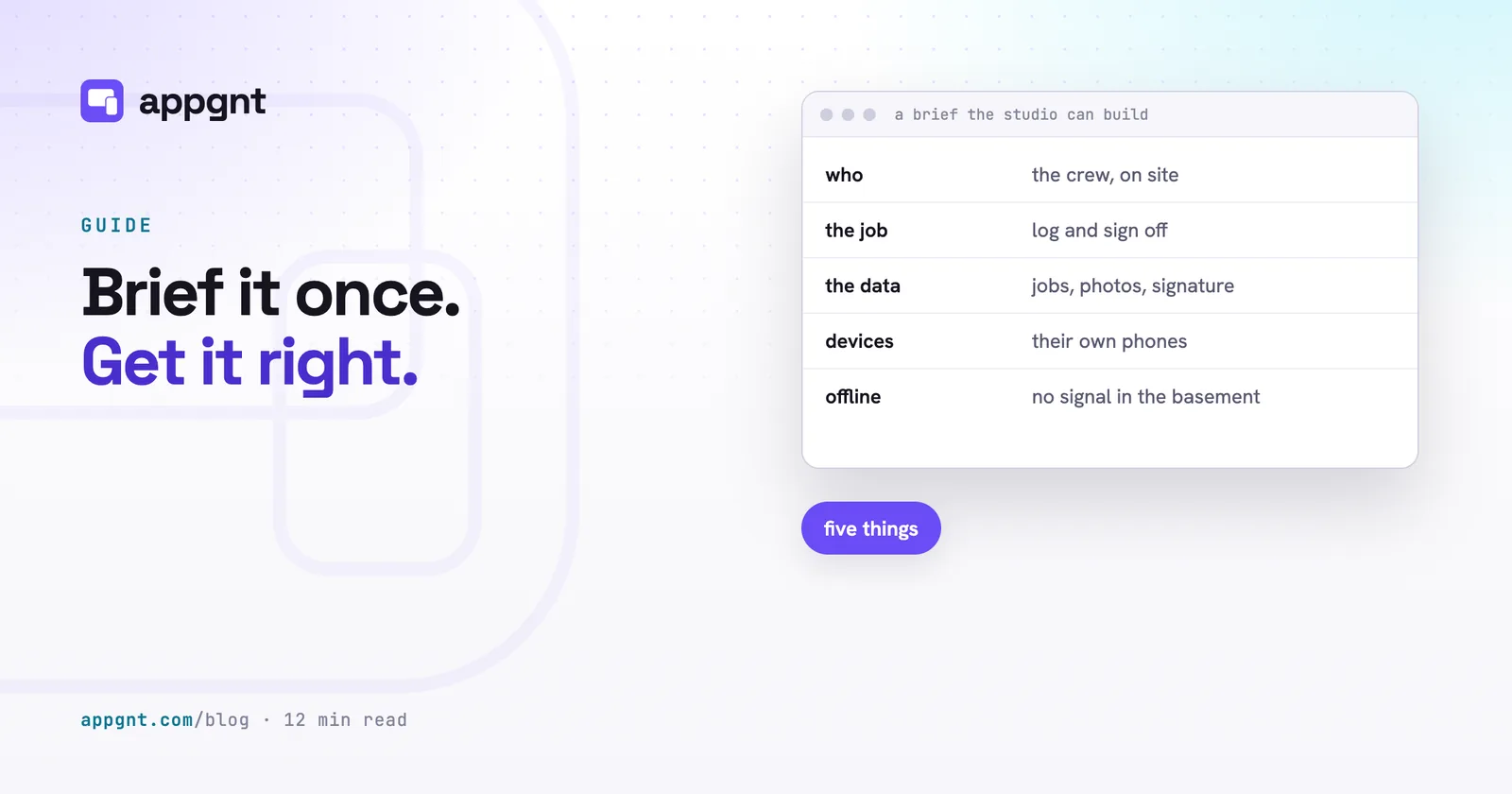
The first message needs five details: who holds the screen, where they stand, the single task they complete, what records they save, and what happens when internet access drops.
When you leave out the setting, the agent guesses. It usually guesses an office worker sitting at a large monitor with a stable Wi-Fi connection. If your app is actually for a roofer balancing on a ladder with glare on their phone screen, that guess produces software you cannot use.
A complete brief covers these five points in plain sentences:
- The person and the place. Name their role and where they work. A service technician in a wet basement needs larger buttons than an accounts clerk at a desk.
- The single verb. Pick one action the app exists to complete. The app inspects a boiler, records a crate delivery, or clocks a cleaner into a property.
- The business nouns. List the exact items you track. Write customer name, serial number, van registration, or pallet count. Avoid writing data or records.
- The devices. Name the hardware. Mention if it runs on crew phones in portrait mode, a shared iPad mounted to a counter, or an office PC.
- The connection reality. State whether the tool must work without a signal. If your team works in basements, metal warehouses, or rural roads, state that the app must save everything locally first.
If you already have an existing workflow, such as a clipboard checklist or a battered spreadsheet, take a clear photo of it and attach it to the chat. The studio reads the fields directly and gets the structure right on the first try. You can read more about framing operations tools in our guide on internal tools nobody builds.
What the app must never do
Stating negative constraints prevents the studio from making helpful assumptions that wreck your operational process.
Software tools often add default buttons that make sense in general consumer products but cause chaos in a real business. An agent might add a delete button next to completed jobs, an edit option on signed inspection sheets, or a screen where subcontractors can see other contractors on the roster.
Tell the studio your non-negotiables directly:
- Nobody can edit a timestamp once submitted.
- Staff must never see customer billing rates or margins.
- A user cannot mark a checklist item pass if the photo field is empty.
- The app must never wipe an unfinished form when switching between tabs.
- Completed inspection reports cannot be deleted from the device by the operative.
These boundary lines save you two or three rounds of revisions. They teach the agent your business rules before it writes the user interface.
Good brief versus bad brief
A bad brief describes how software looks, while a good brief describes how work gets done.
Most failed briefs use generic corporate adjectives. They ask for clean designs, modern dashboards, and efficient trackers. These words give the studio zero practical constraints. A good brief describes real objects, physical environments, and specific actions.
| Task | Bad brief | Good brief |
|---|---|---|
| End of tenancy cleaning | We need an easy mobile checklist app for our cleaning crew so they can streamline site reports and elevate quality. | Cleaner on an iPhone inspecting rental flats. One job: mark rooms clean, flag damage, and attach photos. Saves room name, checklist pass or fail, damage note, and photos. Must work offline in basements. Operatives must never delete an existing checklist item. |
| Cafe stock count | Build a modern stock inventory system for cafe staff to manage goods and monitor wastage in real time. | Shift supervisor using a shared Android tablet behind a loud counter. One job: count milk, beans, and cups at close. Saves item name, expected count, actual count, and wastage reason. Big keypad buttons to tap quickly. Staff must not see supplier invoice costs. |
| Physio intake | A seamless digital intake portal for our physiotherapy practice that automates patient registration. | Patient sitting in our waiting room holding an iPad. One job: fill out contact details, medical history, and tap on a body map where it hurts. Saves name, phone, emergency contact, past injuries, pain location. No account login. Reset the form to blank after submission so the next patient cannot see past entries. |
The good briefs take two minutes to write. They give the studio concrete boundaries: specific screen orientations, distinct data fields, and operational protections. For more examples of setting up initial prompts, look at how to describe the app your business needs.
Stick to one job for the first build
Building one workflow from start to finish gives you a working tool you can test on a phone within minutes.
The most common mistake is pasting an entire operations manual into the chat. If you ask for a shift planner, a stock counter, a customer invoicing tool, and an incident reporting desk in your opening prompt, the studio produces a cluttered shell where none of the parts work properly.
Build the core action first:
- Get the primary task working. If the job is logging vehicle defects, build only the defect form and the defect log. Test it on your phone. Walk outside and see if you can log a defect in thirty seconds.
- Fix the physical flaws. Adjust button sizes, fix field order, or change the colour contrast for daylight viewing.
- Add the second job only after the first works. Once defect logging is solid, ask the studio to add the maintenance resolution screen or the manager export view.
Every business app has a central heartbeat. Find the one screen your staff will touch ten times an hour, and make that screen perfect before you ask for reports or settings.
When to ask for accounts and a backend
Most business tools do not need accounts, passwords, or a shared database on day one.
By default, the studio saves information directly on the device using local browser storage. That means the app opens instantly, requires no login, and runs perfectly without mobile signal. If one person uses a tablet at a counter, or an operative uses their own phone to collect signatures during the day, local storage is usually all you need.
Only ask the studio for a backend when your process requires data to leave the physical device:
- A technician fills out a sheet on site, and the dispatcher in the office must see the finished report immediately.
- Staff members need individual email logins to separate their personal shift history.
- Customers log in from home to check an appointment time you set at the clinic.
If you do need a shared database and logins, state that clearly after the interface works. The studio sets up isolated accounts and cloud data storage per app, rather than sharing resources across multiple projects. Keep it local until the workflow is proven. Read our breakdown on when your app needs accounts and a backend to decide which setup suits your operation.
How to give feedback after the first build
Tell the studio what is operationally wrong in the same plain language you use with your team.
You do not need to learn web design terms or diagnose code problems. If something feels awkward, describe the physical reality of the problem. Bug reports written in plain English produce the fastest fixes.
Here are examples of useful feedback:
- The buttons are too close together to hit with wet thumbs.
- The technician needs to select the site name first, and that choice should filter the equipment list below it.
- The camera opens when we tap the button, but it lets staff pick photos from their photo library; change it so they have to take a fresh photo right now.
- The page reloads when the tablet rotates, and it loses whatever the customer typed.
- We do not need a delete button on this table. Staff are tapping it by mistake when scrolling.
The studio tests every change at phone, tablet and desktop sizes before you see it, and fixes errors and broken layouts first. When you state a practical problem, it updates the code, re-runs the tests, and hands you a fresh version to try.
First message checklist
Before you send your opening prompt to the studio, verify that your text covers these basics:
- The role of the person holding the device.
- The physical location where they use it.
- The single task they need to finish.
- The exact business nouns you want to collect.
- The hardware and screen orientation.
- Whether the tool must work without an internet connection.
- At least two things the software must never allow.
- A photo or scan of your existing paper sheet, if you have one.
Frequently asked questions
What should I type in my very first prompt for an app?
State who will use the app, the physical environment they work in, and the single job the app completes. List the exact records you need to save, such as customer names or stock quantities, and name the devices they use. Mention whether the app must work without internet access and list anything users should be forbidden from doing.
Can the studio build an app from a photo of a paper form?
Yes, you can attach a clear photograph or PDF of an existing paper checklist, job sheet, or intake form directly to the chat. The studio extracts the fields, dropdown values, and layout logic to turn the paper layout into digital fields on the first pass.
Why should I build my app without user accounts at the start?
Storing data locally on the device makes the app fast, simple to test, and fully functional without an internet connection. It removes the friction of login screens and password resets while you are still testing whether the layout works for your team. You can add user accounts and cloud synchronisation later once the core task is proven.
How do I tell the studio to fix something that looks wrong?
Describe the practical issue in normal conversational language rather than technical jargon. Say things like the font is hard to read in bright sunlight, the tap area is too small for gloved hands, or staff should not be able to edit a submitted timestamp. The studio understands operational context and updates the interface to match your working conditions.