What changed with phone apps in appgnt
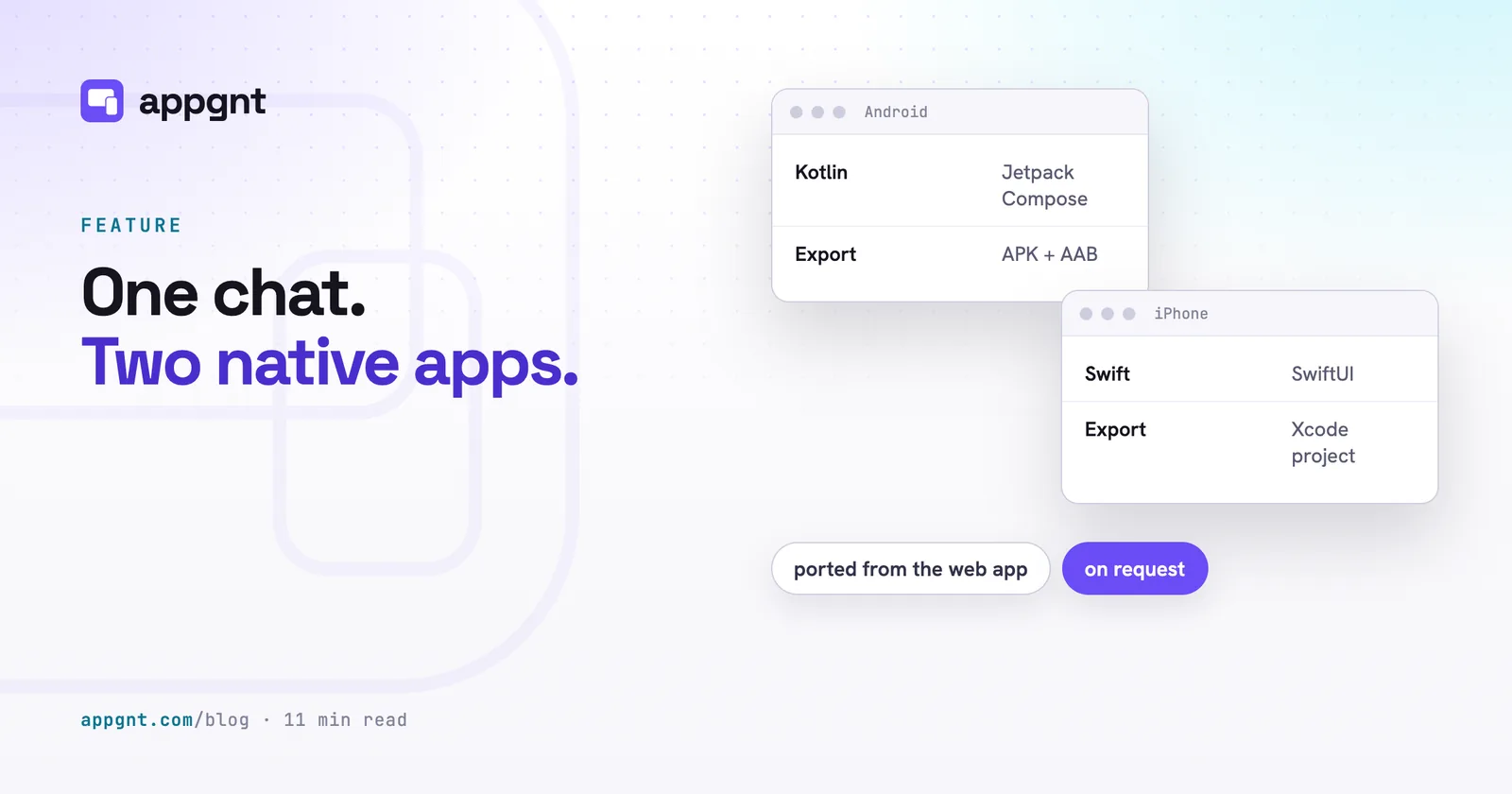
You can now export your app as a native Android project written in Kotlin with Jetpack Compose, and a native iOS project written in SwiftUI.
Until now, the phone apps exported by the studio were web apps wrapped inside a Capacitor shell. That shell worked well, and it remains a solid way to ship. Whether you were tracking daily water for your houseplants, running a household chore rota, organising subs for a five-a-side football club, or managing job sheets for a roofing crew, the wrapped app got onto a home screen quickly.
Now, the agent can take the screens, design tokens, data models, and device hooks from that same chat project and write platform-specific code for both operating systems. You do not need to rewrite your project or start over in a different tool. The agent translates what you already built into the frameworks Google and Apple recommend for modern development.
Why we added native Kotlin and SwiftUI exports
A native app matches the interface conventions of the phone it runs on, reacts instantly to gestures, and avoids awkward questions during store review.
Web views inside shells have improved over the years, but they still feel subtly out of place if you look closely. Scroll physics, keyboard transitions, system fonts, and sheet animations differ between Android and iOS. Building screens with Jetpack Compose on Android and SwiftUI on Apple devices means your app uses genuine platform widgets.
There is also a practical commercial reason. Apple enforces Guideline 4.2 in its App Review Guidelines. That rule allows reviewers to reject apps that are merely repackaged websites without unique mobile features. While an offline-first utility often passes review, a full SwiftUI project removes the wrapper question entirely. If you plan to publish your app to the App Store, having clean Swift code gives your review submission a much stronger foundation.
How the native port works day to day
You build, modify, and test your app in the chat exactly as before, then press one button when you want the native versions.
Every conversational prompt in the studio continues to update your React and TypeScript source files. That code compiles immediately and appears on your live URL at appgnt.com/a/
When you are satisfied with your layout and data flow, you trigger the native port. You can click "Build native phone apps" in the studio, instruct the agent directly in the chat window, or have an external assistant call the build_native_mobile tool over our MCP server.
The first time you run this command, the agent translates the entire project into a native directory beside your web sources. It sets up your screens, porting colours, dark mode rules, local storage patterns, hosted backend calls, and device permissions. On subsequent runs, the agent inspects what changed in the web version since the previous port and updates only the affected Kotlin and Swift files. Ordinary turns in chat never touch the native code, so your web editing stays quick.
How the Android build works
On Android, our build infrastructure compiles your Kotlin code into a debug APK, a signed release APK, and an Android App Bundle ready for Google Play.
When you run an export from the Publish pane, an automated worker checks out your native project and runs Gradle. It applies your package identifier and signs the resulting binaries with your project's unique upload key, which is generated and stored securely in AWS Secrets Manager. If your goal is to publish your app to Google Play, the produced AAB file can be dropped straight into the Google Play Console.
Things do not always build cleanly on the first attempt, especially if you asked for unusual hardware integrations. If the native compilation fails, our export pipeline detects the break and falls back to building your Capacitor package instead. You will still receive an installable Android package for your testing. Simultaneously, the platform captures the Gradle compile log and passes the error directly to the agent, preparing it to fix the missing import or syntax quirk the next time you request a native build.
How the iPhone build works
For iOS, the studio hands you a complete Xcode project zip containing the generated SwiftUI source files, which you compile and sign on your own Mac.
We want to be entirely direct about this process: our cloud servers run Linux containers, not macOS. There is no instance of Xcode running inside the agent's environment. The agent drafts your Swift files, structures the project hierarchy, and validates the syntax through static analysis, but it cannot run xcodebuild to prove that the project links.
Because of that, the first time you open the project in Xcode, the compiler might halt on a missing argument or an ambiguous view modifier. When that happens, you do not need to figure out Swift syntax yourself. Copy the error message from Xcode, paste it into the studio chat thread, and tell the agent to fix the native iOS build. The agent will adjust the SwiftUI file, and you export an updated project zip. You then handle signing through your Apple Developer account, configure your provisioning profile, and submit the archive through Xcode or Transporter.
| Target | Build method | Where it compiles | Fallback behaviour |
|---|---|---|---|
| Android native | Kotlin, Jetpack Compose | appgnt cloud worker | Reverts to Capacitor export |
| iOS native | Swift, SwiftUI | Your local Mac with Xcode | None; paste Xcode errors into the chat |
| Desktop | Tauri 2 (Rust shell) | appgnt cloud worker | None needed |
| Web app | React, TypeScript, Vite | appgnt cloud worker | Stops chat turn on build error |
What stays the same for other platforms
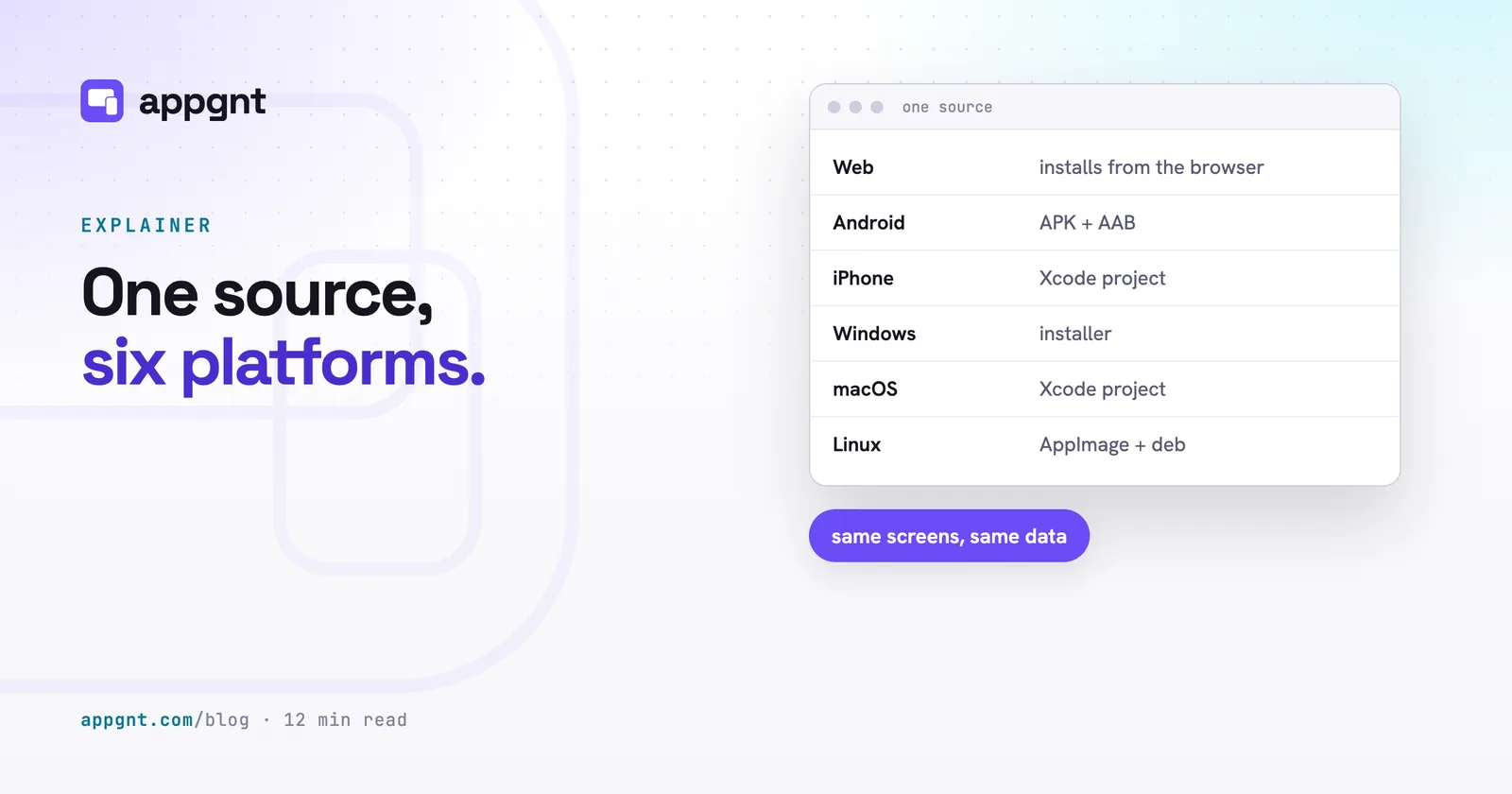
Nothing changes for desktop builds, the progressive web app, or any mobile projects you choose not to port.
Desktop applications for Windows, macOS, and Linux still rely on our Tauri 2 pipeline. Tauri wraps the production web build in a fast, lightweight webview managed by a small Rust binary, keeping desktop resource usage low. The web version remains an installable progressive web app that anyone can add to their home screen directly from Chrome, Safari, or Edge. You can read more about how those targets fit together in our guide on shipping one app across web, mobile, and desktop.
If you have an existing project in the studio and never touch the native button, nothing breaks. Your exports will continue to produce wrapped Capacitor builds exactly as they always have. The choice to move from a wrapped shell to a native codebase is entirely optional.
Most importantly, you own the code. When you hit download in the Files pane, the zip file includes your React application, your backend configuration files, and the complete Kotlin and Swift source folders. There are no proprietary runtimes or locked libraries. Any developer can open the Android folder in Android Studio or the iOS folder in Xcode and continue writing features by hand.
Where the limits are right now
The studio agent does not execute or take automated screenshots of the native mobile apps, so visual verification still happens in the web preview.
When you chat with the agent, it verifies its progress by running a headless Chromium browser, checking touch targets, and reading DOM states. It cannot boot an Android emulator or launch the iOS Simulator inside its VM. That means you are responsible for testing the compiled mobile builds on a physical device or simulator to ensure layouts adapt gracefully to hardware notches and dynamic system fonts.
A native port also requires practical developer accounts if you plan to go beyond local testing. While local storage and device features such as the camera are ported into the generated code, push notifications still require your own Firebase or Apple Developer credentials. If your app relies on precise background alarms on Android 12 or newer, the user will still need to approve that permission in their system settings. The agent will wire the permissions into your manifests, but platform security rules remain your responsibility to manage.
Frequently asked questions
Do I need a Mac to publish an iPhone app built with appgnt?
Yes, you need access to a Mac running Xcode to compile, sign, and upload your iOS app to the App Store. The studio generates the complete SwiftUI source code and project files, but Apple requires Xcode on macOS to create the final signed store archive.
Will Apple reject an app if it was originally created as a web app?
Apple often rejects apps under Guideline 4.2 if they are simple web views wrapped in an application shell without distinct device features. By porting your app to native SwiftUI code using our studio, your project uses genuine platform controls, which takes the thin-wrapper objection off the table.
What happens if the native Android build fails to compile?
If the cloud compiler encounters an error building your Kotlin code, the system automatically falls back to generating a Capacitor wrapped build. You will still receive an installable APK for testing, and the compile logs will be saved so the agent can fix the error the next time you build the native phone apps.
Can an external developer edit the Kotlin and Swift code produced by the agent?
Yes, the exported code is standard Kotlin with Jetpack Compose and standard Swift with SwiftUI. There are no proprietary dependencies or hidden appgnt runtimes, so any mobile developer can open the folders in Android Studio or Xcode and edit them normally.
Does appgnt update my native mobile code after every single chat prompt?
No, the agent only updates the web version during normal conversation turns to keep your feedback loop fast. The native Kotlin and Swift files are only updated when you explicitly click the button to build native phone apps or ask for a mobile build in the chat.