Set up your Google Play developer account early
You need your own Google Play Console account before you can upload anything. appgnt builds and packages your Android app, but we never submit files on your behalf. The console belongs to your business, and Google needs to verify who you are.
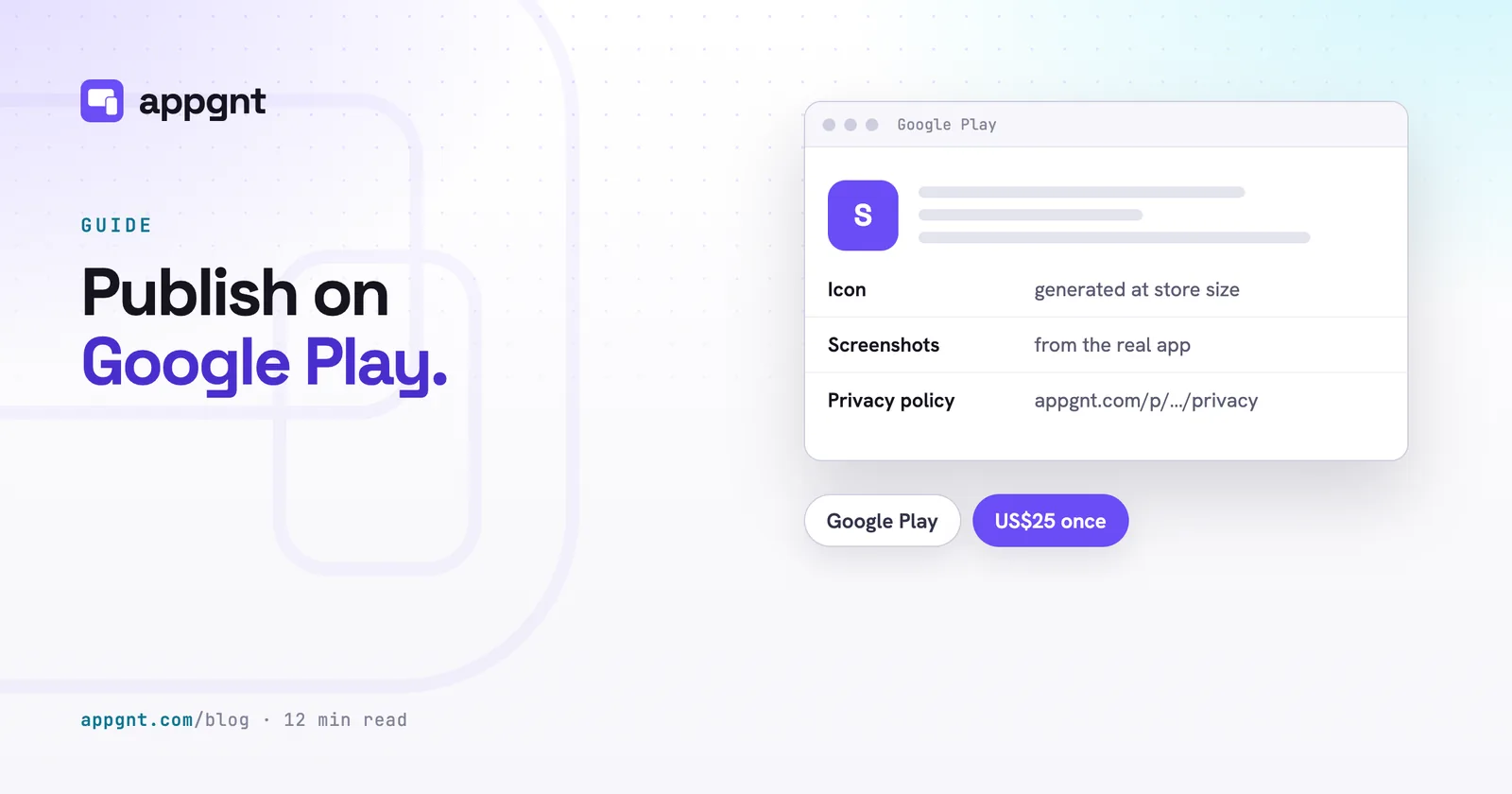
Google charges a Google Play Console registration fee of US$25 as a one-off payment. If you register as an individual, verification usually takes a valid identity document and a phone number. If you register as an organisation, Google requires your official company registration details and a D-U-N-S number from Dun & Bradstreet.
Getting a D-U-N-S number can take several working days if your business does not have one already. Request it before you start packaging your app. Once Google verifies the organisation details, your console is ready to create its first app listing.
Export the Android App Bundle from the studio
Google Play distributes apps using the Android App Bundle format, known as an AAB file. A standard APK works if you want to hand a direct download link to a colleague, but the Play Store requires an AAB.
Open your app in the studio and select the Publish pane. When you click the Android export button, our build system starts a dedicated build for your app. It builds your project and signs the output with a private upload key created specifically for your app.
The build takes around three minutes. When it finishes, the Publish pane gives you two files to download:
- A release AAB file to upload to the Google Play Console.
- A release APK file for testing directly on your own Android phone.
If you have pressed Build native phone apps, the Android export compiles the native Kotlin and Jetpack Compose app into those same files, signed with the same upload key. Should that native build fail, the export falls back to the wrapped build so you still get an installable app, and the studio passes the error to the next native port to fix. Apps that have not been ported export the wrapped build, as before.
The studio keeps your upload key in encrypted storage so subsequent updates use the same signature. You can view or export this key at any time from the project settings. Once you upload the bundle to Google, Play App Signing protects your release. Google holds the final release key and signs the actual downloads delivered to customer phones.
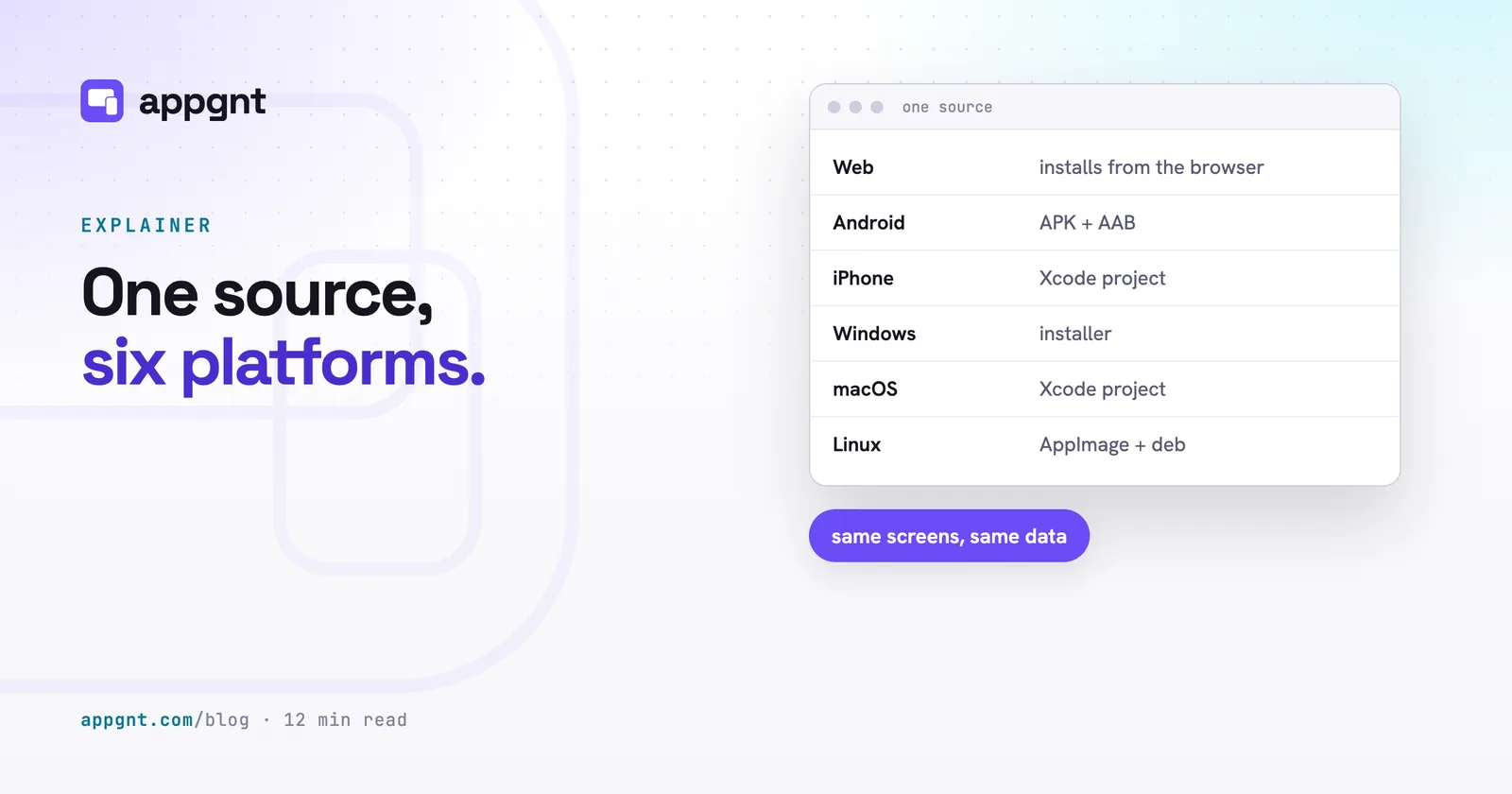
If you also intend to release on Apple devices, see our guide on how to publish your app to the App Store. Because appgnt lets you maintain one app for web, Android, iOS, Windows, Mac, and Linux, the business logic in both mobile apps stays identical.
Generate your store assets in the Marketing kit
A blank store page will block your submission. Google requires specific image dimensions, descriptive text within tight character limits, and completed compliance questionnaires.
Inside the studio's Publish pane, open the Marketing kit. This runs a background task that inspects your app, captures it at every store size, and produces the exact assets Google Play demands:
- App icon: a 512 by 512 pixel PNG image.
- Feature graphic: a 1024 by 500 pixel banner that sits at the top of your store listing.
- Phone screenshots: two to eight screenshots formatted at 1080 by 1920 pixels, taken from your active screens.
- Store copy: an app title up to 30 characters, a short summary up to 80 characters, and a full description up to 4,000 characters.
Google documents the full display criteria under their guide to add preview assets to showcase your app. The Marketing kit creates these graphics based on your app's actual palette and content, so you do not need to assemble them in a graphics editor.
The kit also includes a text document that maps out the answers you need for Google's Data Safety and Content Rating questionnaires. It notes whether your app stores records locally on the device or passes data back to the appgnt backend.
| Store asset | Google Play specification | What the Marketing kit produces |
|---|---|---|
| App icon | 512 x 512 px PNG, up to 1 MB | App icon on your brand background |
| Feature graphic | 1024 x 500 px JPG or PNG | Generated brand banner with palette colours |
| Phone screenshots | 1080 x 1920 px (or 16:9), minimum 2 | Real screenshots captured from your interface |
| App name | Maximum 30 characters | Generated title fitting the limit |
| Short description | Maximum 80 characters | Concise summary of primary utility |
| Full description | Maximum 4,000 characters | Structured list of features and workflow notes |
Add your privacy policy link
Google Play rejects submissions that lack a valid, working privacy policy URL. The policy must clearly outline what information your app accesses, where data goes, and how users can ask to delete it.
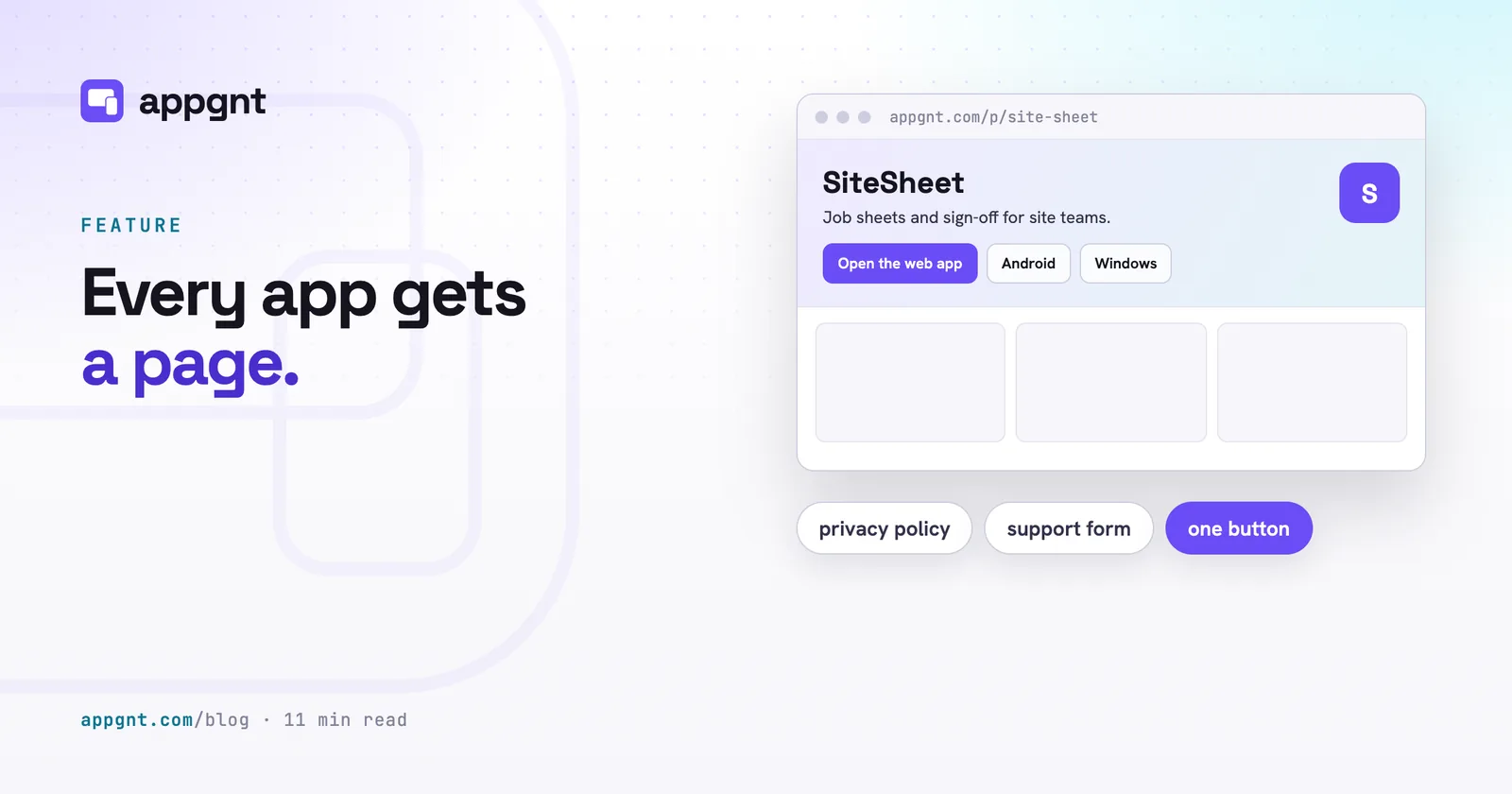
You do not need to hire a lawyer to write a basic hosting policy. Every published app gets an app page on our system, explained in our article on why every app gets a page. When you publish your app page from the Publish pane, it creates an address formatted like appgnt.com/p/<your-app-slug>/privacy.
This page explains how the application behaves. It states that data remains stored on the phone by default, explains that the hosting behind your app does not use analytics or tracking cookies, and lists the direct support route. If your app uses the appgnt backend to store customer records or team bookings, the policy notes that hosted data too. Copy that URL into the App Content section of your Google Play Console.
Test internally before submitting for review
Never submit a fresh build straight to the production track. Google lets you set up an internal testing track that skips the formal store review queue.
- Go to the Testing section in the Google Play Console menu and select Internal testing.
- Create a new release and upload the AAB file you exported from the studio.
- Add your own email address and the email addresses of a few staff members to an internal email list.
- Copy the private join link Google provides and open it on an Android phone.
Install the app and run through daily operations. Check every workflow your staff or customers will rely on. Tap every input, test the offline behaviour, and confirm that form submissions do not fail silently.
Google reviewers look for dead ends. If your app includes a button that says "Book an appointment" or "Contact branch manager", that button must open a real screen, send an email, or show a clear status message. If an inspector taps a broken control or hits an empty screen that spins endlessly, your app will be sent back.
Another common cause of rejection is asking for permissions you do not use. Default appgnt exports only request permissions tied to features you asked the studio to build, like camera access for barcode scanning. Do not turn on native capabilities in the project files unless your screens actively use them.
Submit to production and handle updates
When internal testing is complete, promote the release from Internal testing to Production inside the Play Console. The console will guide you through any missing requirements, such as target audience age ranges, government app declarations, and your financial categories.
First-time reviews take between several hours and three business days. Once approved, your listing goes live across the regions you selected.
When you want to change your app, you do not repeat the entire administrative setup:
- Instruct the studio to make your changes in the chat thread. If the app has native phone apps, press Build native phone apps afterwards so the changes are carried over to the Kotlin app.
- Go to the Publish pane and export a fresh Android bundle. The studio increments the internal version code automatically while preserving your package identifier.
- Download the new AAB file.
- Open your existing app in the Play Console, navigate to the Production track, create a new release, and drop the AAB into the upload box.
- Write a brief note explaining what changed, save the release, and send it to review.
Updates usually pass through review much faster than initial submissions.
Frequently asked questions
How much does it cost to put an app on Google Play?
Google charges a one-off developer registration fee of US$25 when you open your account. You do not have to pay an annual renewal fee to keep your developer account active, and appgnt charges no additional fees for exporting your Android files.
What is the difference between an APK and an AAB file?
An APK is an executable Android package that you can install directly onto a phone using a download link. An AAB is an Android App Bundle, which is the required format for uploading to Google Play so Google can optimise downloads for different device screen sizes.
Why did Google Play reject my Android app submission?
Most first-time rejections happen because of incomplete forms, dead-end buttons that do nothing when tapped, or asking for native permissions that the app interface does not use. Ensuring all features work in internal testing and providing a working privacy policy URL resolves the majority of rejections.
How long does Google Play take to review a new business app?
First-time submissions typically take between a few hours and three business days to be reviewed by Google. Subsequent updates to an existing app usually clear the review process within twenty-four hours.
Can appgnt submit my application to the Google Play Console for me?
No. Google requires the developer account to belong directly to you or your business, including identity verification and business registration documents. We export the production-ready files and generate the listing materials, but you upload them to your own console.